

Submit Form Data
The Submit Form Data action collects values from the Form Control components in the current view and sends them as a form response. It is configured on a button (or Email Collection) component from the Property Panel.
This page covers how submissions are assembled, including default values, extra static data, and merging behavior across multiple views.
Configuring the Action
The action is added to a button like any other action. Once added, the Property Panel exposes:
- View - The view to switch to after a successful submission.
- Subscribe email to ESP - Links captured email address to the current user.
- Subscribe phone number to SMS - Links captured phone number to the current user.
- Form Data - A list of static key-value pairs appended to the submission. See Form Data below.
Subscribe email to ESP
WARNING
A form field of type "Text" with validation set to "Email" must be on the current View for this to work as expected.
This is enabled via the Subscribe email to ESP.
Linking an email to a user has multiple impacts:
- The captured email will also be added to the list of emails captured for the current campaign.
- The captured email will be added to the user's profile, which then enables segmentation rules such as User Collected Email.
- Stream event Email Collected will be fired.
Subscribe phone number to SMS
WARNING
A form field of type "Text" with validation set to "Phone" must be on the current View for this to work as expected.
Works in a similar way to to ESP.
- Phone number will be available to send SMSs to.
- Stream event SMS Subscription will be fired.
How a Submission is Assembled
When the button is clicked, Fanplayr builds the final form response by combining values from three sources, in priority order:
- Form Control values entered by the user.
- Form Control Default Values (from the Form Control's settings) - used when the user did not enter a value.
- Form Data key-value pairs configured on the Submit Form Data action - used when no Form Control with that tag contributed a value.
In short: Form Control values > Form Control Default Value > Action Form Data.
Example
| Tag | Form Control Default Value | Action Form Data | User Input | Final Value |
|---|---|---|---|---|
| name | (none) | (none) | "Sam" | "Sam" |
| color | green | blue | (empty) | green |
| animal | (none) | kangaroo | (empty) | kangaroo |
Default Values
Default values are configured on each Form Control (in the Form Control settings) and are honored at runtime when the user leaves a field blank. Default values are supported on:
- Text
- Text Area
- Dropdown
If a Form Control's tag matches a key defined in the action's Form Data, the Form Control's default value wins.
Form Data
The Form Data section on the Submit Form Data action lets you append static key-value pairs to every submission from that action - even when no matching Form Control exists in the view.
Common uses:
- Tagging the response with context such as the view name, variant, or experiment name.
- Sending fixed metadata such as
source: widgetorlanguage: ento downstream systems. - Providing a fallback value that should only be used when the Form Control is missing or empty (note that a Form Control's Default Value takes priority - see How a Submission is Assembled).
Each entry is a simple key: value pair. Keys should be unique within an action.
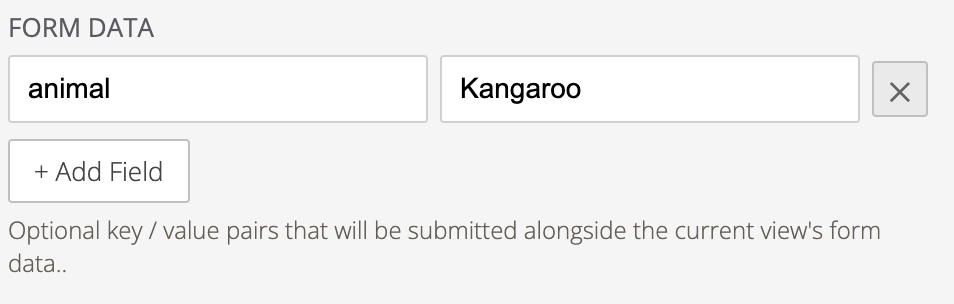 Form Data complete with animal = Kangaroo field
Merging Across Multiple Views
If a widget has Form Controls spread across multiple views, all data submitted from that widget during the session is merged into a single form response on Session expiry.
For example, you might collect the user's name and favourite animal on one View, then their age on a later view - the final response contains all three values.
This makes it easy to build multi-step forms without writing custom code: each Submit Form Data action contributes its values to the same session-level response.
INFO
Merging applies per widget view. If you show the the same widget again on a different page view, form data will not be merged from the previous widget view.
WARNING
You must have a Submit form data in the current view on every View with form fields or the data for this these form fields will not be collected.
Validation
The Submit button stays disabled until all required Form Controls in the current view have a valid value. This prevents partial or invalid submissions from being sent.
- Required-field validation is configured on each Form Control.
- Default Values count as valid input for the purposes of enabling the Submit button.
- Form Data values configured on the action do not satisfy required-field validation - the user still needs to fill in (or have a default for) any required Form Control.
Where Submissions Appear
Submissions are available in the Fanplayr Portal under Account > Form Responses, and may also trigger email notifications. See Form Control for details on accessing and exporting responses.
Form submissions will also trigger Form Submission Stream Trigger.
WARNING
Forms submitted from the same widget in the same session will be combined on Session expiry. Because of this data is not available until after Session expiry, and may take up to an hour after to appear in Portal.