

Suppressing Tags and Products
The Suppression List gives you control over which AI-generated product tags — and which products — can participate in Fanplayr’s AI Product Tagging feature.
Access the suppression list via the "Suppression List" button at the top of the Product Tag management list.
You may want to suppress tags or products for reasons such as:
- Seasonal campaigns (e.g., hiding “Winter” tags in summer)
- Brand alignment (e.g., removing terminology that doesn’t match your voice)
- Merchandising strategy (e.g., excluding low-priority or discontinued products)
- Correcting undesirable AI-generated tag patterns
Fanplayr allows you to maintain two separate suppression lists:
- Product Tag Words – Prevent specific tag words or fragments from being linked to any products.
- Product IDs – Prevent specific products from being linked to any tags.
Important
Changes to suppression lists do not take effect immediately. You must manually apply changes (see Applying Changes) for them to go live.
Product Tag Words
Suppressed Tag Words allow you to define full tags or partial tag fragments that should not be used by Fanplayr’s AI Product Tagging system.
When a tag matches a suppression rule:
- It is unlinked from all products in your catalog.
- It is removed from your available tag list.
- The AI system will not recreate or relink that tag while it remains suppressed.
How Matching Works
- Case-insensitive –
Blue,blue, andBLUEare treated the same. - Wildcard supported (
*) – Use*to match multiple variations.
Example:
If you suppress:
*blue*This will suppress tags such as:
- “Blue Shoes”
- “blue_ocean”
- “SKYBLUE”
Adding a Suppressed Tag Word
- Click the Tags tab.
- Click “Add suppressed tag.”
- Enter the tag or tag fragment.
- Click “Add.”
- Click “Apply Changes” to activate.
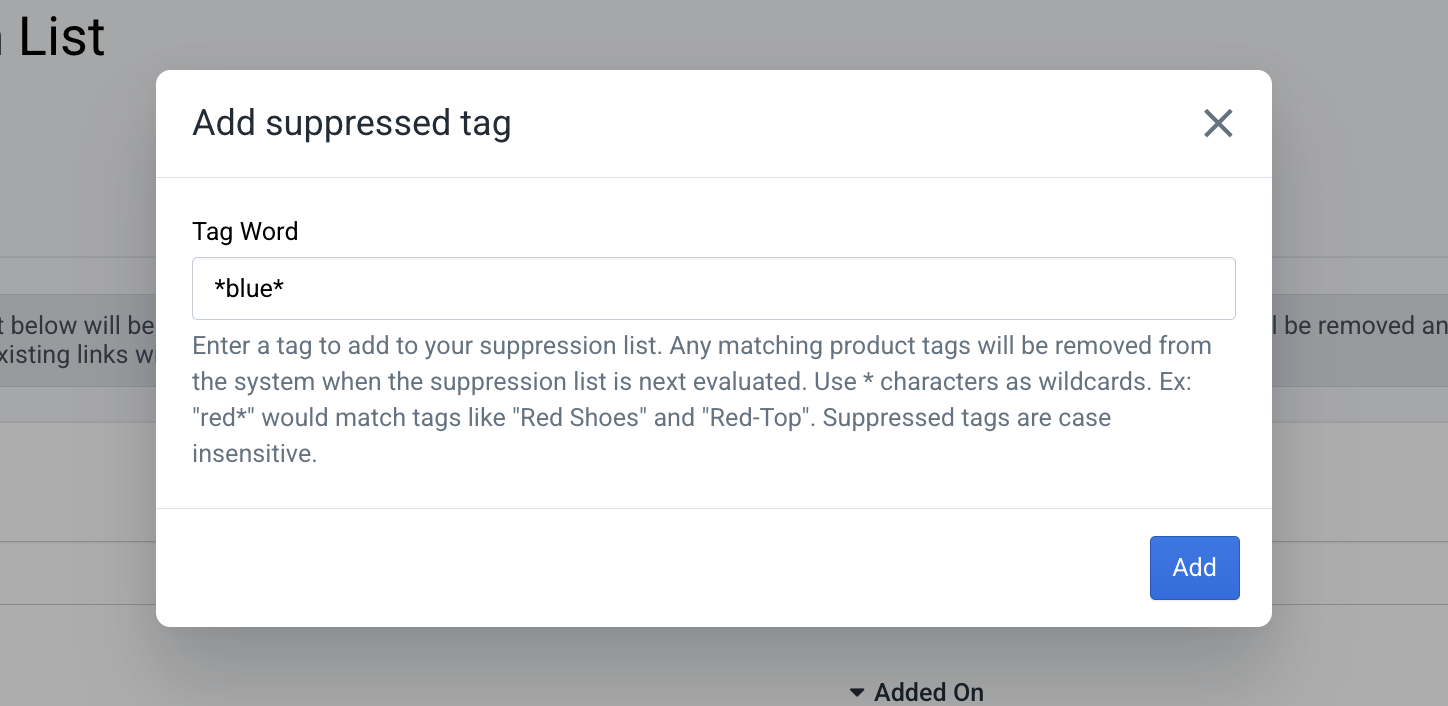 Add suppressed tag
Removing a Suppressed Tag Word
- Click the “Remove” button next to the tag in the suppression list.
- Click “Apply Changes” to finalize.
Product IDs
Suppressed Product IDs allow you to completely exclude specific products from the AI tagging system.
When a product is suppressed:
- All existing tag links are removed from the product.
- The AI system will not relink tags to the product.
- Tags cannot be manually added to that product in the UI.
This is useful for:
- Discontinued products
- Products not meant for promotion
- Temporary exclusions
Adding a Suppressed Product ID
- Click the Products tab.
- Click “Add suppressed product.”
- Enter the Product ID.
- Click “Add.”
- Click “Apply Changes.”
If the Product ID does not match an active product in your catalog, the system will display an error.
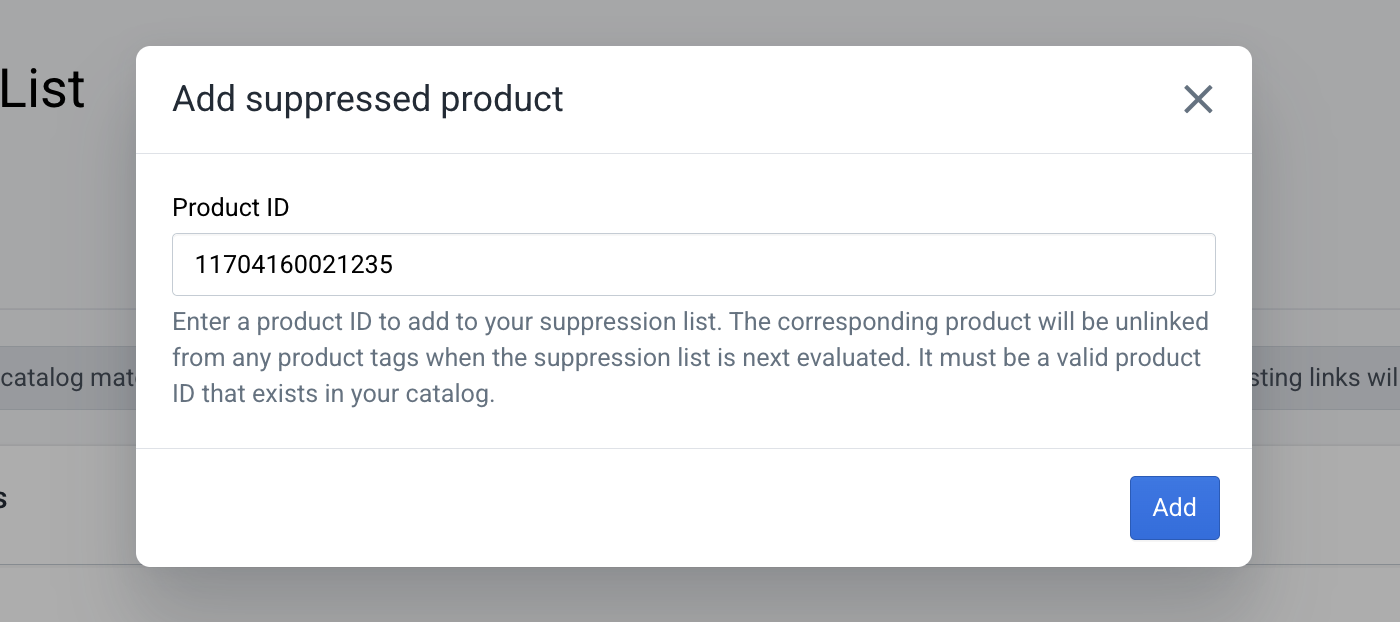 Add suppressed product
Removing a Suppressed Product ID
- Click the “Remove” button next to the Product ID.
- Click “Apply Changes” to finalize.
Importing Suppression Lists
For large updates, you can upload a suppression list via file import.
To begin:
- Click “Upload List” near the top of the suppression screen.
- Configure the upload in the popup modal.
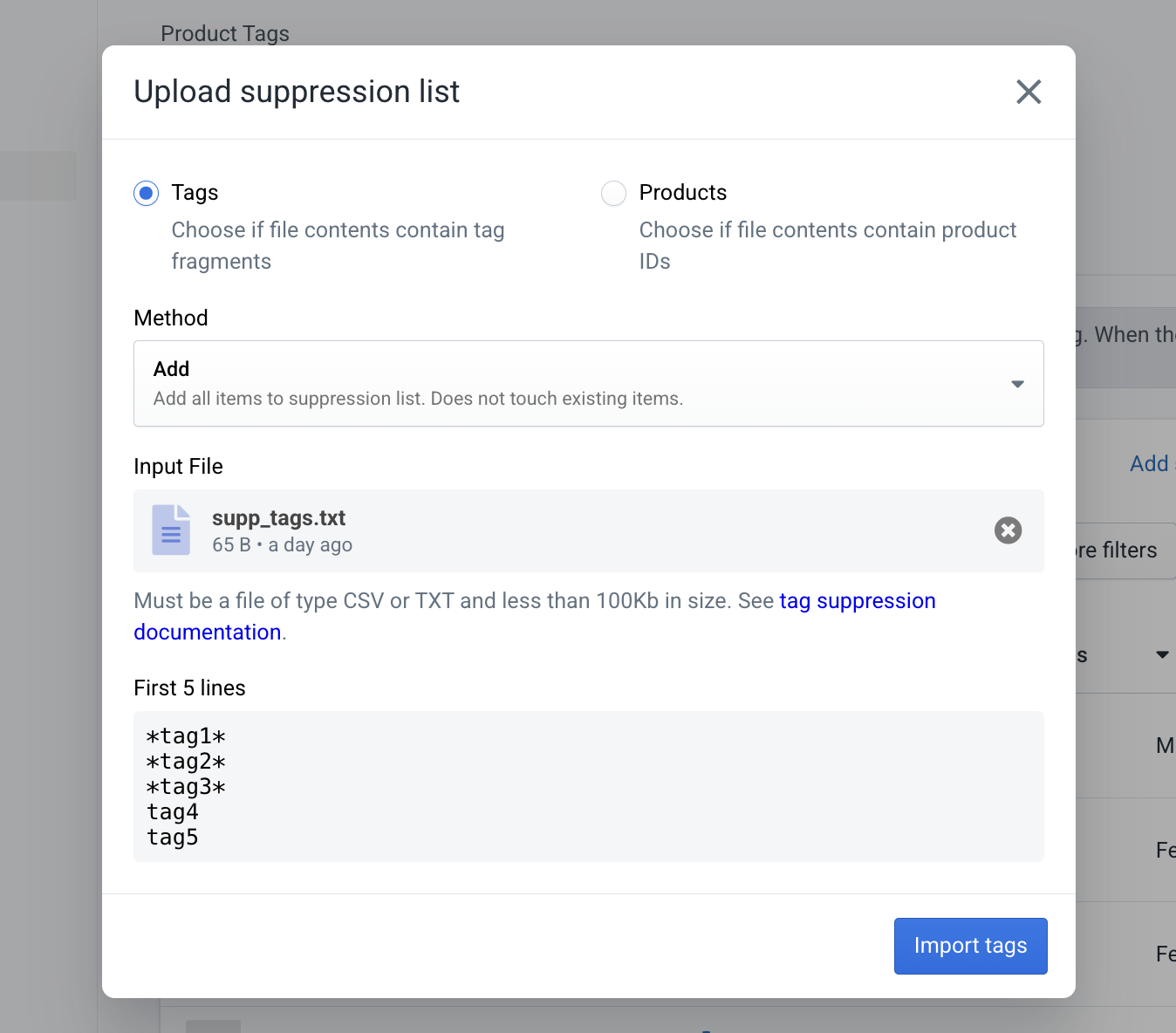 Uploading suppression list
Upload Configuration Options
You will need to define:
Type
Choose whether your file contains product tag words or product IDs
Method
Choose how the system should handle your file:
- Replace – Completely overwrite the existing suppression list.
- Add – Add items from your file without affecting existing entries.
File
Upload a TXT or CSV file.
File Requirements
- Must be
.txtor.csv - Must contain a single column (one item per line)
- No header
- Less than 100KB in size
Example:
tag1
tag2
tag3
tag4
During upload:
- Invalid entries are skipped.
- Duplicate entries are ignored.
- For Product IDs, IDs that do not match active catalog products are skipped.
Uploaded changes must still be applied before they take effect.
Applying Changes
Because reorganizing tag-product relationships can be resource-intensive, suppression changes are not processed instantly.
When you make changes (manual or upload), you will see a banner indicating that changes must be applied.
To activate changes:
- Click “Apply changes.” in the banner
- The system will begin processing updates in the background.
 Applying changes
What Happens During Processing?
The system will:
- Unlink tags from products if they match suppression rules
- Remove suppressed tags from the system
- Remove all tags from suppressed products
- Prevent suppressed items from being recreated or relinked
- Potentially create new non-suppressed tags if needed
While Processing
- You may continue editing suppression lists.
- Some new changes may be included in the current processing job.
- If not, you will see the “Apply changes” button again once processing completes.
TIP
Anytime the “Apply Changes” button is visible, it indicates that there are pending changes not yet scheduled for processing.
Best Practices
- Use wildcard suppression carefully — broad patterns (e.g.,
*red*) may remove more tags than intended. - Review suppression lists periodically for outdated rules.
- When making large updates, use the Replace upload method to avoid conflicts.
- Always confirm that changes have been applied after editing your lists.