

Product Activity Text Variable
Using product activity counts in a Creative widget is quite simple and only requires two steps:
1. Choosing a Product Display
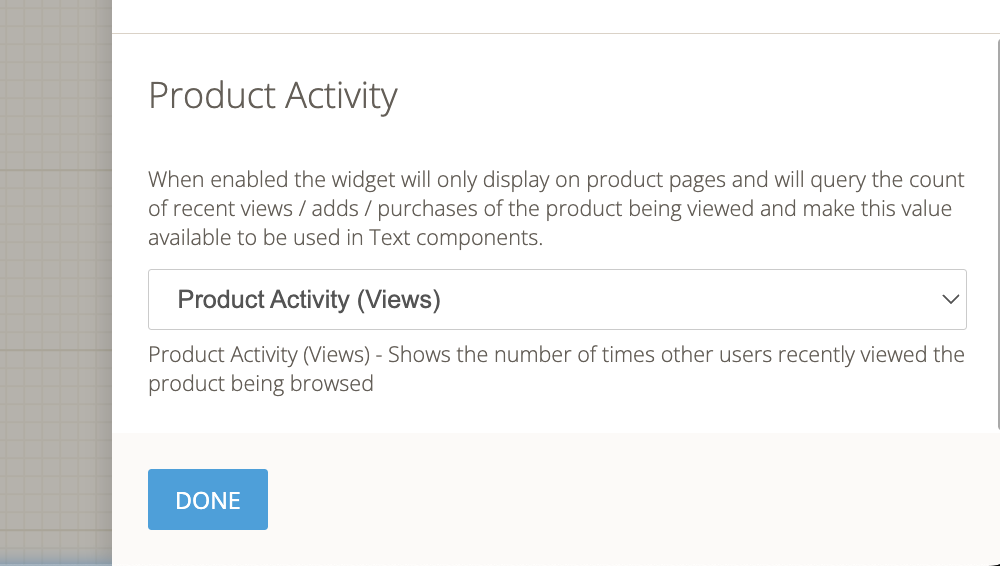 Product Activity Widget Setting
In the widget-wide settings, scroll to the bottom to see settings related to Product Activity. Here you can select a Product Display that is already pre-configured with your activity settings (minimum activity, activity type, etc). This option must be set to a valid product display in order for the product display variable to exist.
Learn more about Product Displays here.
2. Using Product Activity Variable
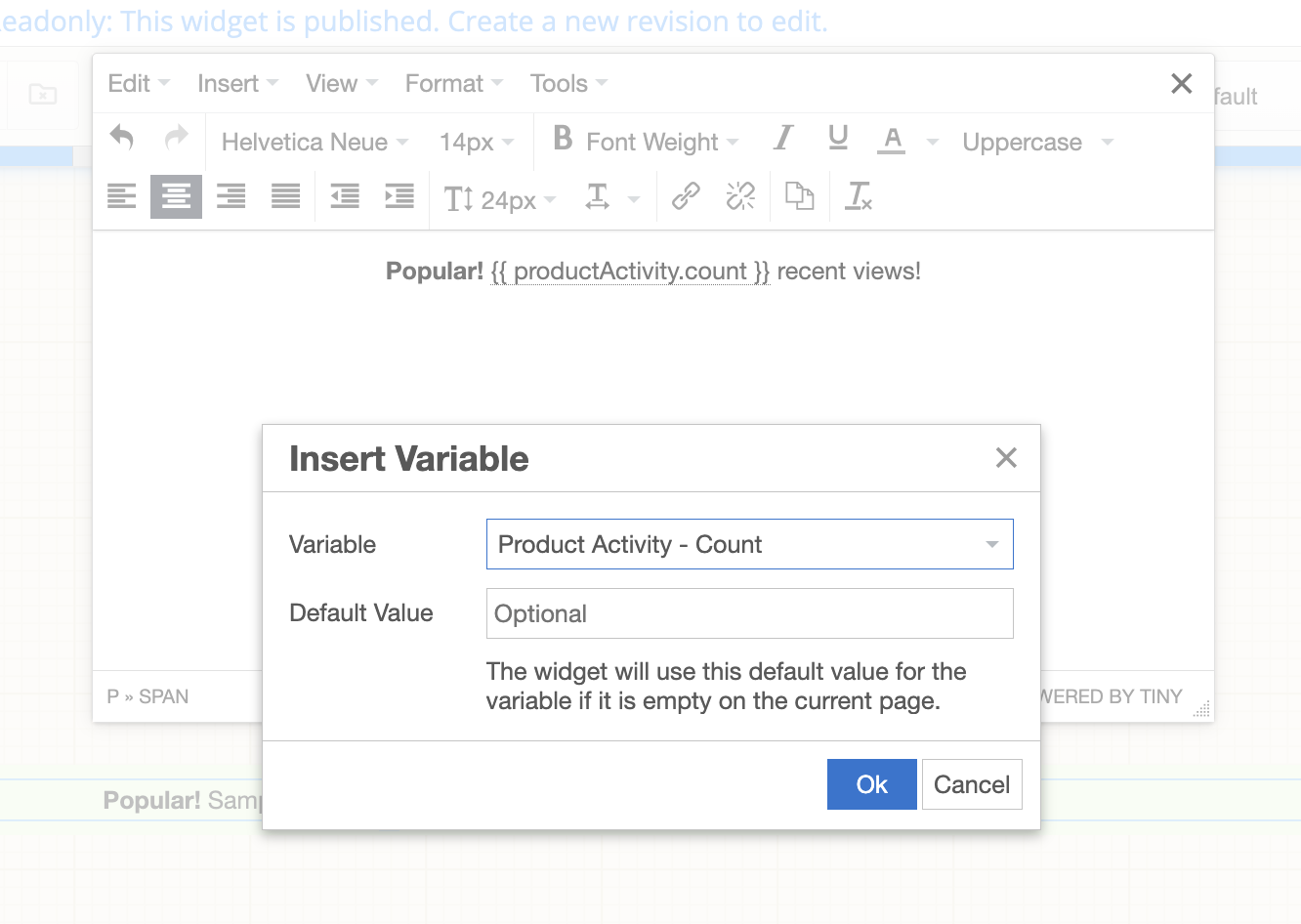 Configuring Product Activity Variable
Product Activity counts are displayed in a normal "Text" component in the Creative Editor. It works by using a special variable that is replaced at runtime with the activity value. Follow the steps below to insert the variable:
- Add a "Text" component using the left component sidebar
- Double-click the text component to open the text editor
- Click "Insert" -> "Insert Variable" at the top of the text editor.
- In the popup, edit the selected variable to one called "Product Activity - Count".
- Click "Ok". No need to set a default value.
- Click out of the text editor
- Remember to save your changes!
Tips
Keep in mind that this activity widget may not be displayed for a few reasons:
- Product activity count is less than or greater than the allowed range in the referenced product display settings
- You are not using the widget on a product page
- Other normal widget concerns (embed selector, segmentation setup, and so on)